
Today will Talk about ‘How to download & Install Rollo Thermal Printer Drivers‘ for Mac and windows let’s get started in points. I recently upgraded my shipping station with a Rollo X1038 thermal printer because I want an efficient label printing experience on my MacBook Air. I chose Rollo for its speed, reliability, and compatibility with 4×6 shipping labels. But one day, my printer stopped working and refused to appear in my macOS printer list.
After attempting multiple USB reconnections, checking cables, and restarting my system, I realized that, unlike AirPrint-enabled wireless models, a USB-based Rollo printer requires a dedicated Mac driver.
This guide is built to help users like me who are working with a USB-based Rollo thermal printer through a step-by-step guide, from downloading and installing the correct driver to configuring label dimensions and resolving common macOS-specific issues.
Check Compatibility and System Requirements
Ensure you have the following:
- Ensure compatibility with macOS versions (10.9 and later).
- Supported Rollo models (X1038 – USB, X1040 – Wireless).
- Ensure your Mac meets the minimum RAM and processor requirements for label software.
- Direct thermal label rolls (like 4″ x 6″)
- A working USB cable or Wi-Fi connection.
How to Download and Install Rollo Thermal Printer Driver for Mac?
Follow the quick and easy steps in the section below to download & install the Rollo thermal Printer Driver on your Mac computer.
Important: If you have the Rollo printer’s USB version (X1038), you’ll need to download a driver. If you have a wireless Rollo model (X1040), you don’t need to download a driver. MacOS uses built-in support (AirPrint).
Step 1: Download the Driver for Mac
- First, go to the Rollo Support Website – rollo.com.
- Search for a Mac Driver for a USB printer.
- Click Download to save the Mac PKG installer for USB printers.

Step 2: Install the Driver on the Mac
- Open the .pkg downloaded file.
- Follow the on-screen steps and then click Continue.
- After that, click Install.
- Enter your Mac password if asked.
- Wait until the installation is done and click Close.

Step 3: Add Your Printer
- Open System Preferences or System Settings, depending on your operating system.
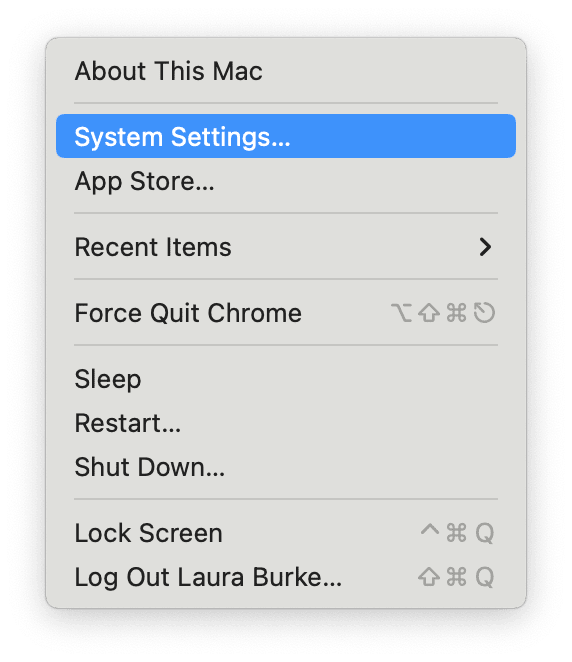
- After that, go to Printer & Scanners.

- Click the “+” to add a printer.

- Select “Rollo Thermal Printer,” then click “Select Software.”

- Choose “Rollo Printer,” and then tap OK.

- Now, click Add.

- Wait for the green status light to confirm a successful setup.

You will now see your Rollo thermal printer added and Idle or Ready status.
Step 4: Setup your Label Size
To avoid half-printed or blank labels:
- Open your label software.
- Now, go to Printer Settings.
- Select the correct paper size (e.g., 4″ x 6″).

- Make sure the orientation is set to Portrait, not Landscape.
Step 5: Print a Test Label
Let’s make sure everything works:
- Create a simple label using your shipping software.
- Now, select the printer model from the available devices.
- In the last step, click Print.
If your label prints clearly and is correctly sized. Congrats, you did it.
Troubleshooting Rollo Printer Driver Issues on macOS
Resolve common Rollo thermal printer driver issues on your Mac, including connection errors, label misprints, and driver setup problems.
Problem 1: Printer Not Found on Mac
- Ensure your printer is powered on and securely connected to your Mac, either via USB or Wi-Fi.
- If you use a network printer, make sure your Mac and the printer are on the same network and that they are functioning correctly.
- If the printer is on the network, go to the Apple menu. Then, choose System Settings, Printers & Scanners. Control-click the printer in the list and choose Reset Printing System. Now, you have to add the printer again.
Problem 2: Blank or Half-Printed Labels
- If the printer loses the label size settings, recalibrate it by feeding labels and pressing the top button until it beeps.
- In the printing settings, verify that the correct label size (e.g., 2×1, 4×6) and orientation are selected.
Problem 3: Can’t Select the Rollo Printer Driver
Check for any firmware updates on your printer.
Uninstall the old driver and then install the new driver for your operating system.
After installation, restart the computer to check that the changes take effect.
If the printer is not recognized, try connecting it to a different USB port on your system.
If using Inventory Lab, update the Java JDK, as outdated versions can cause issues with IL Print.
Frequently Asked Questions (FAQs)
How Do I Reset Mac Printing System?
Learn how to reset the Mac printing system, follow the steps below:
- On your computer, click the Apple icon in the top-left corner and select “System Settings.”
- In the sidebar, click on Rollo Printers & Scanners.
- After that, click on your printer in the list.
- Now, choose Reset Mac Printing System.
- You may need to enter your administrator password to confirm the action.
- After the reset, you’ll need to add your printers again by clicking the Add Printer, Scanner, or Fax button.
Do I Need a Driver for Rollo Wireless Printer on a Mac?
No, you generally do not need to install a separate driver for a Rollo wireless label printer on a Mac. Rollo wireless printers are AirPrint certified, meaning they can communicate with Mac computers using the standard AirPrint protocol.
AirPrint eliminates the need to manually install additional printer drivers on your Mac. Simply add the printer to your printer list, and it will be recognized and ready to print.
Why Is My Rollo Printer Printing Blank?
In some cases, the printer starts to print blank documents. This mostly happens when the printer is low on ink, or the printer settings are not correct. You should check the ink level in the printer and make changes in the printer settings to stop your printer from printing blank documents.
Why Is My Rollo Printer Not Printing?
Some typical reasons why the Rollo printer not printing problem are as follows:
- When the paper in the input tray is not set properly.
- The Rollo printer has low ink in the cartridge.
- There is some issue with the Rollo Printer Driver or firmware.
- Settings on your device do not match your printer printing preferences.
- The printer configuration is not done perfectly.
- Your device is facing a connection or internet issue, and some more.