
Setting up a Rollo X1038 printer is exciting, especially if you are ready to print shipping labels faster and without ink. The Rollo X1038 is a popular thermal label printer known for its speed, reliability, and compatibility with many shipping platforms. However, before you can start printing, it is very important to download the correct printer driver, which many users overlook.
The right driver software helps your computer communicate with the printer, prevents connection errors, and ensures labels print at the correct size. Without it, the Rollo printer may not show up or work as expected. In this guide, you will learn the basic system requirements for the driver and how to download the Rollo X1038 printer driver on Windows and Mac.
Basic System Requirements to Download Drivers
Make sure your computer meets the basic system requirements before downloading a suitable driver software for the Rollo X1038 printer.
For Windows, the printer driver works best on Windows 10 or newer versions. Older operating systems may not support the latest drivers properly. For Mac, macOS 10.9 or later is suggested for smooth installation and better performance.
In addition, you will need a good internet connection to download the driver from the official Rollo website. Using an updated browser like Chrome, Edge, or Safari helps prevent download errors.
In terms of connection, you can use the USB cable included with the printer for a direct setup or Wi-Fi for wireless printer models. If you choose Wi-Fi, then make sure your PC and the printer are connected to the same network before starting the download process.
Steps to Download & Install Drivers for Rollo X1038 Label Printer
Installing the driver software for your Rollo X1038 printer is simple when you follow the correct steps. Always use the official source to avoid errors or compatibility issues.
Step 1: Visit the Official Rollo Site
- Initially, open a web browser on your PC and go to the official website of Rollo at rollo.com/driver.
- From there, head to the Support or Printer Setup Guide section.
- Downloading drivers from the official site ensures you get the correct version for your printer model.
Step 2: Select Your Operating System
- Once you’re on the download page, choose your operating system.
- After that, select Windows if you’re using a PC or macOS if you’re on a Mac.
- Make sure you pick the correct version so the driver works properly with your system.
Step 3: Download a Suitable Driver
- Click the Download button to begin. The software file will save to your computer’s default Downloads folder.
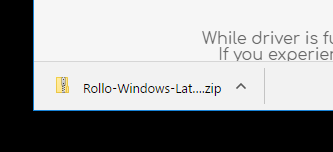
- Wait for the download to complete before moving to installation.
Install the Driver on Windows
- Open the downloaded ‘ZIP file‘ and then extract it.
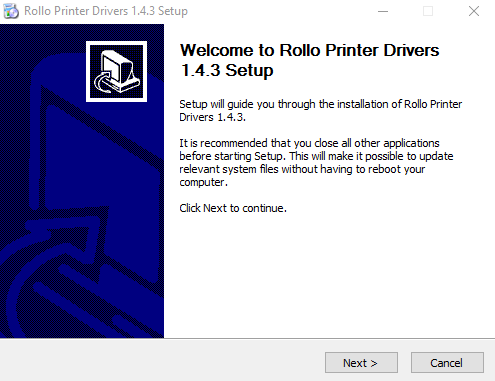
- Double-click the installer file to run it.
- Click Run and allow permissions if asked.
- Follow the on-screen steps to finish the installation program.
- Connect your printer through a USB cable when prompted.
- After installation, go to Control Panel > Devices and Printers to confirm the printer appears.
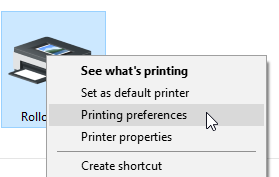
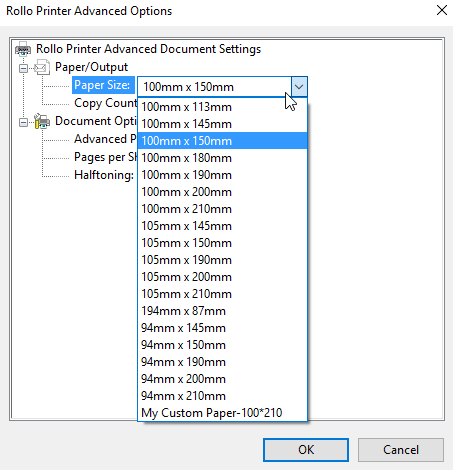
- Open Printing Preferences and set the correct label size, such as 4×6 (100 × 150 mm).
Note: The Windows driver is required only for the Rollo USB printer. The wireless model does not need a driver installation.
Install the Driver on Mac
- Open the downloaded driver package.
- Double-click the installer to start setup.
- Allow permissions and enter your Mac password if required.
- Perform the steps displayed on your screen and click the Install button.
- Once finished, go to System Settings > Printers & Scanners.
- Next, click the (+) icon to add your printer model.
- Restart your Mac system to apply the changes.
After completing these steps, your Rollo X1038 label printer is ready to use. Now, you can print labels without driver-related issues.
Frequently Asked Questions (FAQs)
How Do I Manually Download the latest Rollo Printer Driver?
Here are the steps to manually download the latest printer driver:
- Open a web browser and visit the official Rollo website.
- Go to the Printer Setup or Support section and choose your printer model.
- Select your operating system, then download the driver file.
- Open the file and follow the on-screen steps to install it.
Why Is Rollo X1038 Printer Not Showing Up on Mac?
The printer may not appear on a Mac system if the driver software is missing or outdated, the printer is not connected properly, or the settings are incorrect.